
Part one

Your Network – What You Control

Understanding Your Home Network With MCSnet

At MCSnet, we’re dedicated to bringing reliable, high-speed internet directly to your home. While we ensure your connection to our network is robust, understanding your home network is key to maximizing your internet experience. Think of your home network as the bridge between your MCSnet internet service and all your devices.

How MCSnet Connects To Your Home

MCSnet primarily connects to your home using two cutting-edge technologies:

  1. Wireless (Radio Antenna on Your Roof / GigAir): For many MCSnet customers, especially in rural and suburban areas, your internet service begins with a specialized radio antenna (also known as Customer Premise Equipment or CPE) installed on your roof.
    • This antenna receives a powerful wireless signal directly from one of MCSnet’s towers. We have a vast network of over 500 fixed wireless towers across Alberta and Western Saskatchewan to ensure broad coverage.
    • The antenna then sends the internet signal down a standard Ethernet cable directly into your home.
  2. Fiber Optics Directly to Your Home (Fiber-to-the-Home – FTTH): In select communities (like Mallaig, Cherry Grove, Fort Kent, and Thorhild, with more coming), MCSnet offers Fiber Optic Internet. This is the gold standard for internet connectivity.
    • With FTTH, a fiber optic cable is run directly from our network underground into your home. This cable uses light to transmit data, offering incredibly fast, stable, and future-proof internet speeds (up to 1000 Mbps!).
    • The fiber optic cable connects to an Optical Network Terminal (ONT) inside your home. This ONT acts as the gateway for the fiber service.

Key Components Of Your Home Network

Regardless of how your MCSnet service enters your home, the next crucial component is your router:
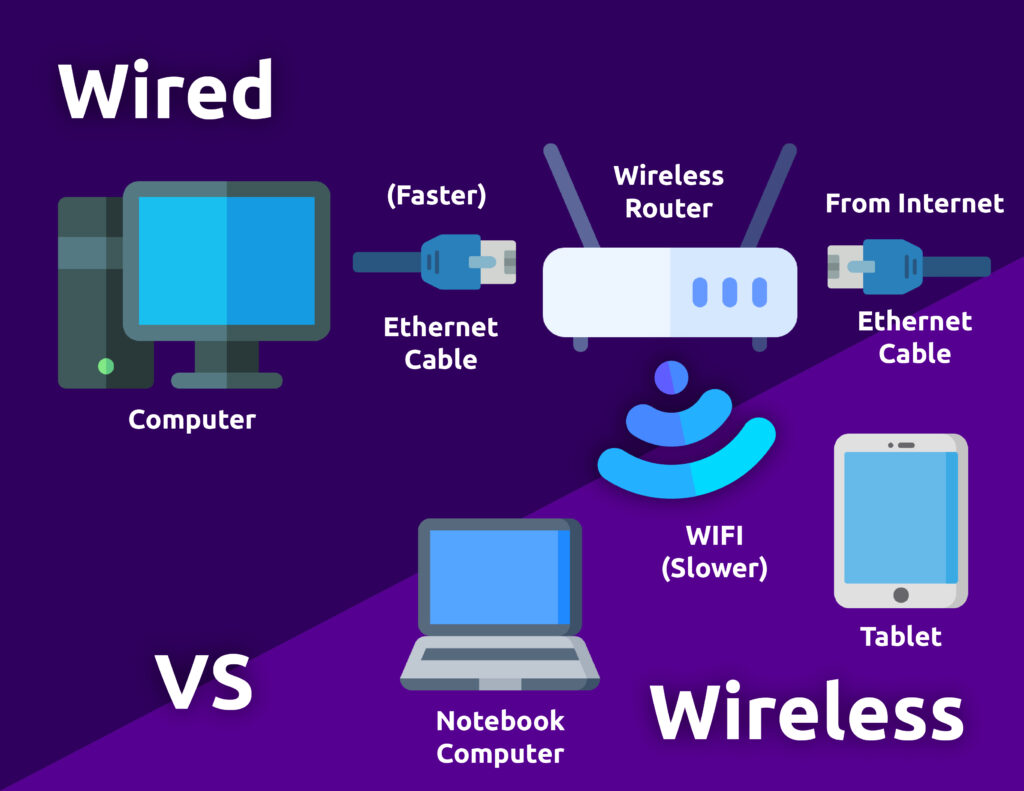
  1. The Router (Your Home’s Internet Hub): The Ethernet cable (from your rooftop antenna) or the connection from your ONT (for fiber customers) plugs directly into your router. MCSnet explicitly states that we do not use modems in the traditional sense, as our equipment directly provides an internet-ready signal.
    • Your router is the central hub of your home network, acting like a traffic cop. It directs internet data packets to the correct devices in your home and sends data from your devices out to the internet.
    • Assigns IP Addresses: Your router assigns a unique “address” (an IP address) to each device on your home network, allowing them to communicate with each other and the outside world.
    • Manages Data Flow: It ensures data gets where it needs to go efficiently.
    • Provides Security: Most routers include built-in firewall features to protect your network from unauthorized access.
    • MCSnet offers and recommends its own Wi-Fi 6 routers for optimal performance and compatibility with our services, though you can use your own compatible router.
  2. Wired Connections (Ethernet Cables): For devices that require the fastest and most stable connection (like desktop computers, gaming consoles, or smart TVs), you can connect them directly to your router using an Ethernet cable. These connections typically offer superior performance, lower latency, and reliability compared to Wi-Fi.

  3. Wireless Connections (Wi-Fi): Your router also broadcasts a wireless signal, creating a Wi-Fi network that allows devices like laptops, smartphones, and tablets to connect to the internet without cables. Wi-Fi uses radio waves (typically 2.4 GHz and/or 5 GHz frequencies) to transmit data.
    • 2.4 GHz: This frequency offers a wider range and can penetrate obstacles (like walls) more effectively, but generally provides slower speeds and can be more prone to interference.
    • 5 GHz: This frequency offers faster speeds and more bandwidth, but has a shorter range and is more easily affected by obstacles.
    • Wi-Fi 6: MCSnet’s current routers support Wi-Fi 6, the latest standard, which offers faster speeds, better performance with many connected devices, and improved efficiency.

How It All Connects: A Simple Flow

  1. Internet from MCSnet:
    • Wireless: The internet signal travels from an MCSnet tower to the radio antenna on your roof.
    • Fiber: The internet signal travels through the fiber optic cable trenched directly into your home.
  2. Into Your Home:
    • Wireless: The radio antenna sends the signal via an Ethernet cable to your router.
    • Fiber: The fiber cable connects to an ONT, which then connects to your router.
  3. Router Directs Traffic: Your router creates your private home network.
  4. Devices Connect: Your devices connect to the router either wirelessly via Wi-Fi or directly with an Ethernet cable.
  5. Online!: Once connected, your devices can now access the internet through your MCSnet service.

Optimizing Your Home Network

While MCSnet ensures a strong connection to your home, the performance of your home network is largely within your control. Here are some tips to optimize it:

  • Router Placement: Place your router in a central, open location in your home, away from other electronics that might cause interference (like microwaves, cordless phones). Elevated positions (not on the floor) are generally better for signal distribution.
  • Wired vs. Wireless: For devices that don’t move, use an Ethernet cable if possible. This provides the most stable connection and frees up Wi-Fi bandwidth for your mobile devices.
  • Minimize Interference: Cordless phones, microwaves, and even your neighbors’ Wi-Fi networks can interfere with your signal. If you’re experiencing issues, changing your router’s Wi-Fi channel can sometimes help.
  • Update Firmware: Keep your router’s software (firmware) up to date. Manufacturers often release updates to improve performance and security. MCSnet’s managed routers often handle this automatically.
  • Consider Extenders/Mesh Systems: For larger homes or areas with weak Wi-Fi, consider a Wi-Fi extender or a mesh Wi-Fi system to broaden your coverage.
  • Device Management: Too many devices actively streaming or downloading simultaneously on Wi-Fi can slow things down. Temporarily disconnect devices not in use during critical activities.

When To Contact MCSnet Support

If you’re experiencing slow speeds or connectivity issues, it’s helpful to first check your home network components (router placement, wired vs. wireless connection). If you’ve tried optimizing your home network and are still experiencing problems, it’s time to reach out to MCSnet. Our local team is ready to assist with diagnosing issues related to your connection to our network.

Remember: We’re here to help you get the most out of your MCSnet internet!

PART TWO

MCSnet Network

Part two is about the MCSnet network and explains the challenges of a wireless provider, and peak usage and speed variance.
 
After the radio on your roof, the main parts of the MCSnet network are the access points (APs) on the towers that the subscribers connect to, tower to tower feeds, and the connection to the fiber for the region.