The My Account section of the mcsnet.ca website will allow you to:
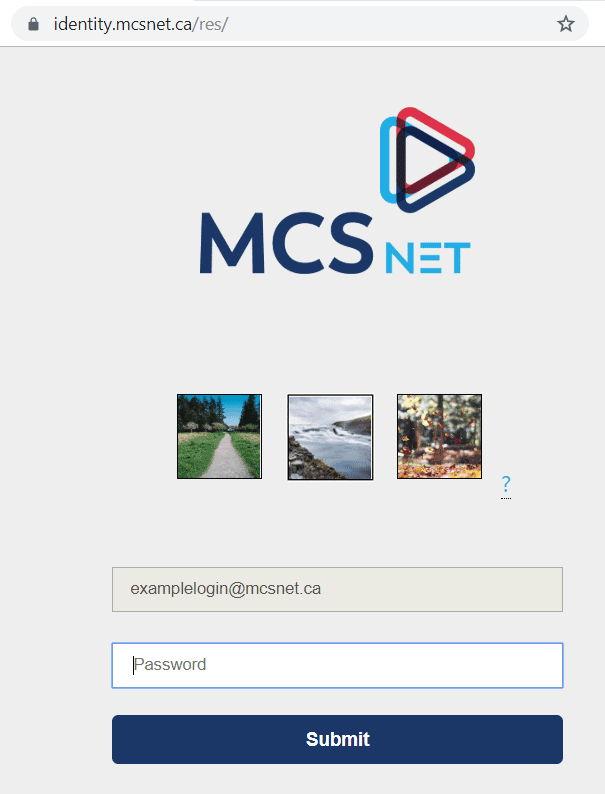
Your login for My Account (this should be your main email account like example@gmail.com), and will likely be written on your contract. If you have lost or forgotten your login information, please call our toll-free support (1-866-390-3928) to retrieve this information. You can also initiate a password reset using the Forgot Password? link, which will email you a password reset link.
Old browsers like Internet Explorer will not work on this page, please use a current browser like Firefox, Chrome, Edge, Safari, or smart phone browsers such as the Samsung browser.
The three images are for your security, these images and the order should always be the same for your specific login, this helps you to recognize the login page being spoofed through a phishing scam (where evil doers try to trick you into giving your password away in a look-a-like scam webpage).

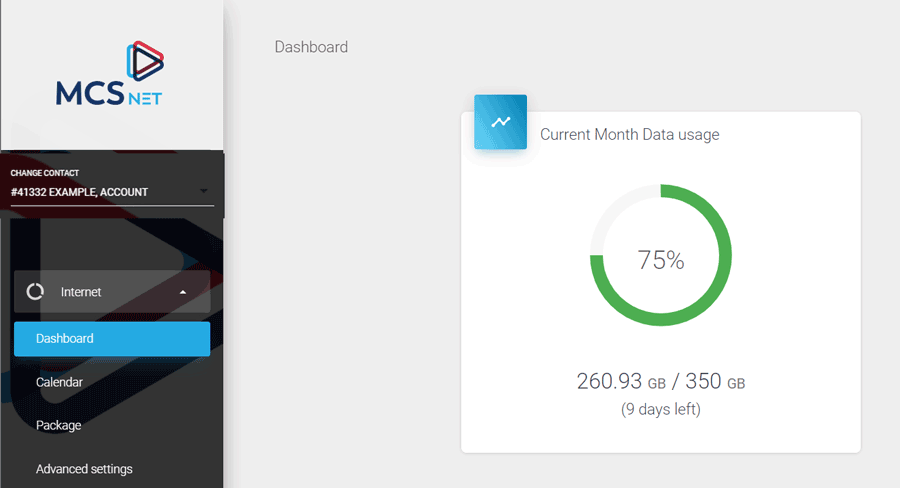
Usage is found in the Internet section.
Usage is tracked by the calendar month, where it starts on the first of the month and resets with the start of the next month. Your email will be notified as you pass higher %age usage levels to warn you when you are getting close. If you do hit your usage allotment for the month, you will not automatically be charged, but instead be given the option to use the free unlimited mode, to continue using the connection at a reduced speed.
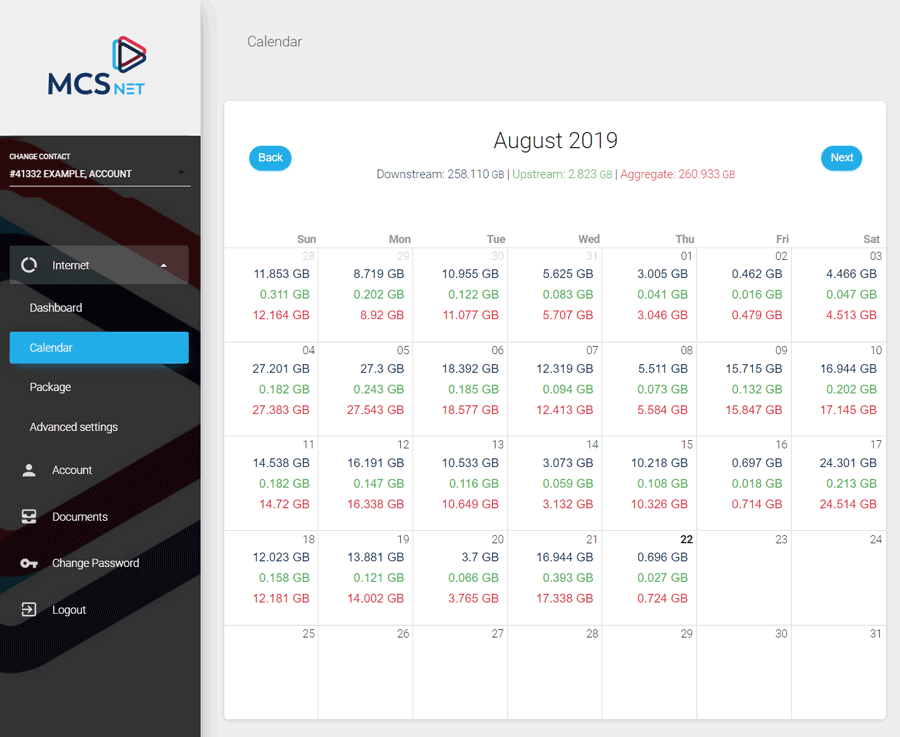
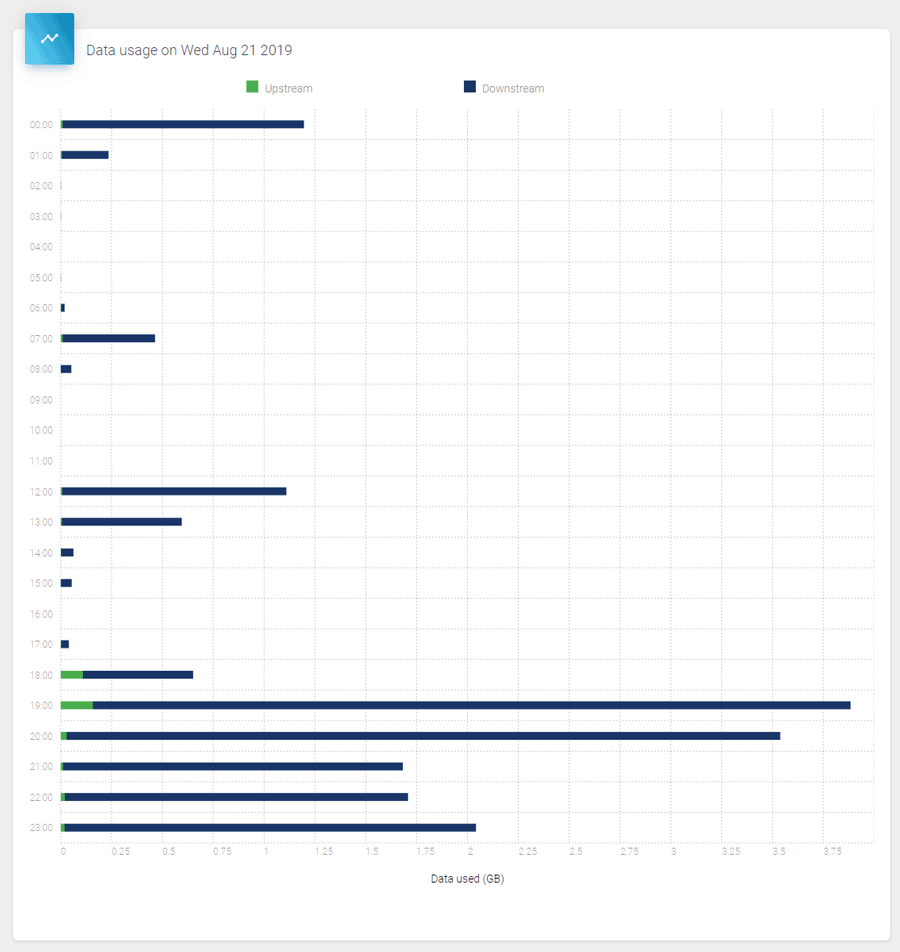
The calendar view allows you to see the usage per day, and if you click on a specific day, you can see in the other graph an hour by hour view that day.
This shows the hour by hour GB usage that day, download and upload. Download is almost always much more than upload, it’s where you are receiving information from the Internet, which is streaming video, or downloading video game updates.
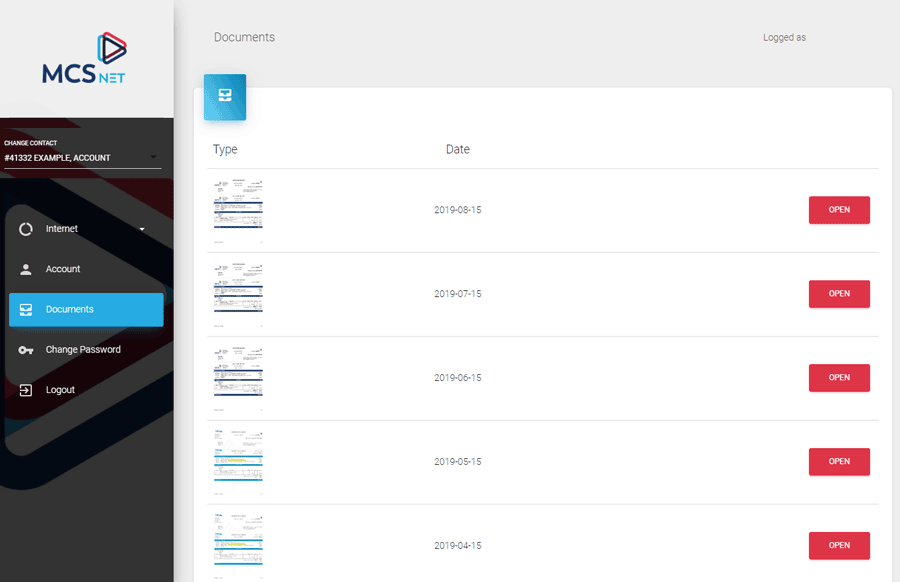
Previous invoices are found in the ‘Documents’ section. These reflect previous billing cycles.
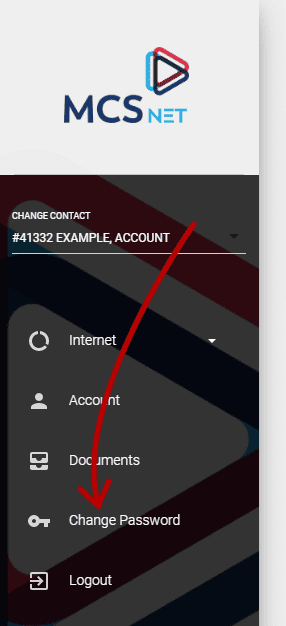
Use the ‘Change Password’ section to change the password you use for the admin account that you are currently using in here.
You can also use the ‘Forgot your password?’ link on the ‘My Account’ login page if you have the admin account setup as an email account. After clicking on the ‘Forgot your password?’ link, key in your email address that you have set up to use as an admin account. This will initiate an email to you, where following the provided link will allow you to enter a new password for this account.
It’s best practice to use a unique password for every site you log into on the web. Using a password manager can help to keep track of these.
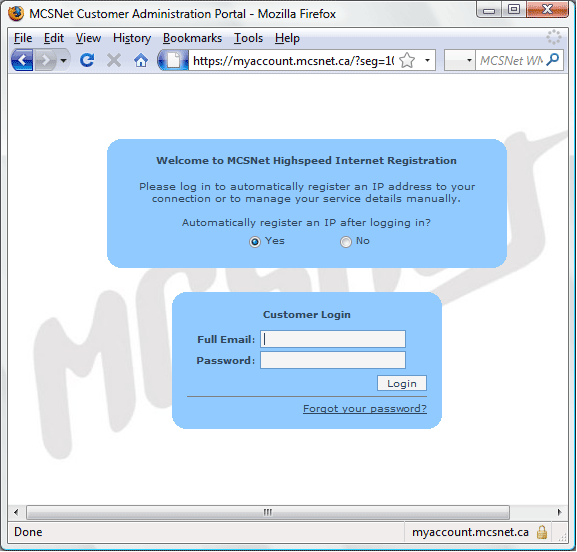
If you are changing the device that you have connected to the internet, you may get a ‘registration page.’ This page should appear when you try to open a page on the internet.
Leaving ‘Yes’ selected and logging in with your admin account credentials will allow the internet to send a proper IP address to your new device. After performing this task, it is usually necessary to reboot the new device to allow it to retrieve the new address it has been assigned. To reboot a router, simply unplug the power connection from the back of the device so the lights go off on the front, and then plug the power back in – allow 1 minute for it to boot up.
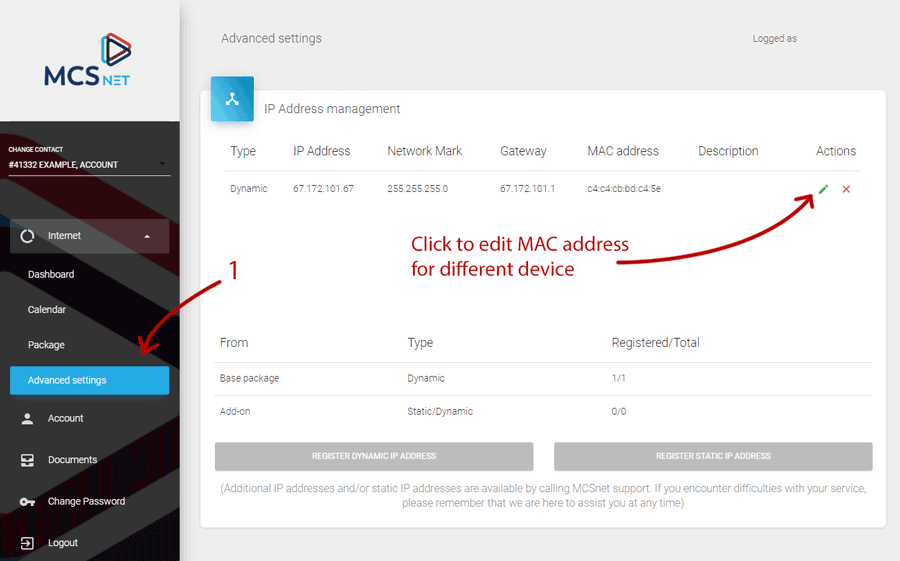
You can also manually edit the registered MAC address associated with the IP address. To edit this address, click the edit icon of the IP address field and enter the MAC of your device.
The MAC address is the unique ID for any network connected device, it is used to pair the IP address on your connection with the device to allow it to get online.