
Have always wondered what the difference between Megabits (Mb) and Megabytes (MB) is? Or maybe you’re just now learning that the capital or lowercase “b” makes a world of difference?
Either way, we’re certainly not judging – in fact, we’re glad you’re wondering. Knowing the difference is crucial when it comes to selecting the right internet plan for you!
When discussing Mb and MB, you’re talking about two digital units of measurement. However, they are two incredibly different types of measurement.
It’s like comparing apples to oranges – they’re both fruit, but they’re quite distinct in use. If you’re making a pie, for example, you don’t want to get them confused!
In this blog post, we’ll break down the difference between the two in a way that’s easy to grasp, with minimal computer science lingo. Let’s dive in!
Units of digital data: Bits and bytes
To begin, we first have to explain what bits and bytes are and how they relate to each other. These small units of digital information are the reason that you can do everything from watch a YouTube video to send an email! Let’s dive into each.
Bits
The term “bit” is a contraction of the words “binary digit”. Bits are the tiniest pieces of data you can transfer in the digital world, but don’t underestimate these tiny powerhouses. Bits contain a ton of complex information in their tiny package! When bits join together in groups, they create bytes (Parrish & Christiansen, 2023).
Bytes
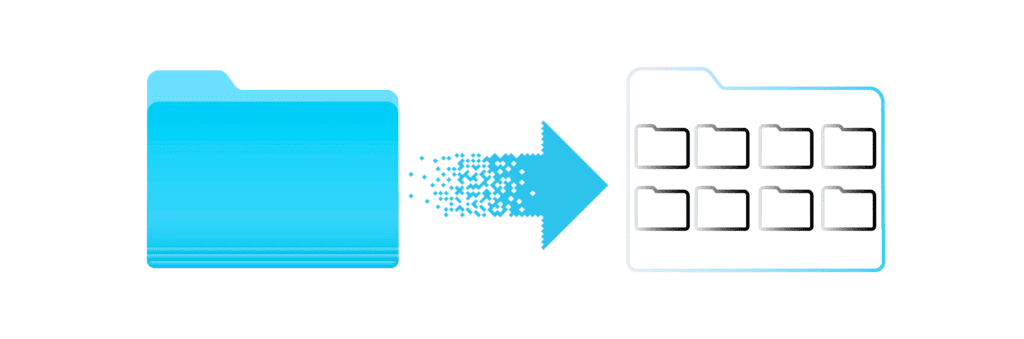
Bytes, as mentioned, are groups of bits. To get technical, 8 bits = 1 byte. So any time you’re converting bits to bytes, you’d divide that number by 8, or multiply bytes by 8 to get bits (Parrish & Christiansen, 2023).
But it gets a little more complicated than that. Bytes aren’t just a group of bits; bytes are more like digital containers made up of bits. Think of bits like grains of sand and bytes like a glass container made up of those grains of sand.
Understanding the difference between bits and bytes becomes more important when evaluating speed and storage. When you have large numbers of bits and bytes, you get Megabits and Megabytes.
Understanding megabits (Mb)
Now that we’ve defined what “bits” are, you might be able to figure out that a megabit is a group of bits. But you might be wondering, “Isn’t a byte a group of bits as well? What’s the difference?”
Let’s clear this up. While a byte is a group of 8 bits in the form of a container, a megabit is simply a measure of one million bits. That’s quite a large difference in size, shape, and purpose!
When referring to internet speed, providers will list speed as a measurement of megabits per second, often written as Mbps. This tells you how quickly the group of bits travels from the internet source to your device. The higher the Mbps, the quicker the data transfer, and the faster your internet speed.
For example, if you see a plan that offers you 50 Mbps, this means that your internet connection can transfer 50 million bits of data per second.
But how do you determine the speed required for your specific online activities? We’ll get to that in a “bit” (get it?).
Understanding megabytes (MB)
Since you know now that a megabit is one million bits, you’ve probably (correctly) guessed that a megabyte is one million bytes. But what you may not know is that this measurement has nothing to do with internet speed.
Remember when we said that megabytes are like containers made up of bits? We use megabytes (or MB) to measure how much storage capacity a device has, or how much data a file contains (Parrish & Christiansen, 2023).
Like megabits per second (Mbps), megabytes per second (MBps) is a measurement of how much data a storage device can transfer per second. You generally won’t see MBps on an internet plan – this measurement is usually reserved for showing the speed a device uses to transfer data to another device.
To put megabyte (MB) size in perspective, a single MP3 song may be around 3-4 MB in size and a high-definition movie could be 1200 MB or more per hour! (Alambra, 2024)
Understanding gigabits (Gb) and gigabytes (GB)
Now that you have an understanding of the difference between megabits (Mb) and megabytes (MB), we can now define gigabits (Gb) and gigabytes (GB).
You may be able to correctly guess that these are larger versions of megabits and megabytes. But exactly how much?
1 gigabit (Gb) = 1,024 megabits (Mb)
1 gigabyte (GB) = 1,024 megabytes (MB)
These days, you may commonly see storage for smartphones or USB drives advertised in gigabytes (GB) or even terabytes (TB).
When talking internet speed, use the following conversion:
1 gigabit per second (Gbps) = 1,024 megabits per second (Mbps)
You will commonly see internet plan speed in Mbps (or even Gbps nowadays), which tells you how much data is able to be transferred per second based on your plan capacity.
You may be asking: why isn’t the conversion 1,000 Mb per Gb, and 1,000 MB per GB? The answer is quite complex, but we’ll try to explain it in simple terms. The computer science world works on a binary system, which operates in powers of 2, not a decimal system, which works in multiples of ten. 1,024 is a power of 2 (2 to the power of 10, to be exact).
Megabits vs. Megabytes: A Comparative Analysis
Comparing megabits to megabytes is like comparing the speed of a car to the storage capacity in its trunk. One tells you how fast you can expect to go (Mbps), and one tells you how much you can carry (MB).
As you can see, Mb and MB are quite different, as they measure very different metrics. Being able to tell the difference between them is crucial for making informed decisions about your internet plan and planning your digital file storage.
Next, we’ll get into specific types of internet activities and the data required for each.
Daily online activities that use data
If you’re wondering what your typical online activities mean in terms of your traffic cap, here is a quick guide. Keep in mind that there are a lot of factors that go into your internet data needs, so if you need further guidance, you can contact our team any time.
| Household Profile | Primary Activities | Est. Monthly Data Needed |
| Light Single-User | Browsing, email, 1 hour of 1080p video per day, music | 100 GB – 150 GB |
| Remote Worker / Solo Living | Daily HD Zoom calls, 2-3 hours of 1080p streaming daily, regular browsing | 250 GB – 450 GB |
| Average Family (3–4 people) | Multiple HD video streams, social media, light gaming, daily video calls | 600 GB – 900 GB |
| Power-User / Gaming Family | 4K video streaming, frequent game downloads, multiple concurrent streams | 1,200 GB – Unlimited GB |
Choosing the right internet plan based on data usage
Over the past couple of decades, the internet has transformed from dial-up connections to ultra-fast fiber-optic or gigabit speeds many enjoy today. Being able to make a phone call and look something up online at the same time is a luxury that wasn’t afforded to us 20 years ago.
As streaming becomes clearer, gaming becomes more immersive and realistic, and working from home becomes more widespread, we are going to continue to need more and more from our internet plan.
If you’re in the market to update your plan, this section is for you.
Choosing the right internet plan
Choosing an internet plan is a tricky balance between the right speed, enough data to cover your online activities, and a price point that fits within your budget.
To make this process easier for you, we’ve compiled some tips to help you select the best plan.
Tips for selecting the right internet data plan
Evaluate your online habits
Are you a diehard movie streamer? A big gamer? Do you work from home?
By evaluating your online activities, you can get a good idea of what your data needs are. If you haven’t experienced any issues with your current plan, you may be on the right track with your traffic cap. If you are consistently reaching your traffic cap in the middle or at the end of each month, it might be time to upgrade to a higher plan. MCSnet also has Unlimited plans for peace of mind.
Consider the number of devices and users
How much bandwidth is being used at once? Understandably, a household with multiple devices streaming or gaming at once can seriously impact you data requirements!
Select the right data cap
Internet plans all come with a maximum amount of data you can use in a month before you incur extra fees. Data caps are often measured in gigabytes (GB) or even terabytes (TB); 1000 GB = 1 TB.
When it comes to determining your specific internet needs, we can help. We break it down for you in our Internet Buyers’ Guide.
Make sure you’re setting yourself up for the future!
When selecting an internet plan, it’s important to not just consider what your needs are today, but to future-proof your plan to ensure a seamless experience as the tech world advances. High-definition streaming, smart home options, and device requirements are all increasing our internet requirements rapidly.
One way to ensure you’re future-proofing your internet needs is to sign up for a plan within your budget that offers the data you currently need. For example, our Unlimited plans start at $89.95 per month and quite often come with a discount on a contract.
Mb and MB myth-busting
There is a lot of misinformation when it comes to selecting the right internet plan, so in this section, we’ll dispel some of the top myths we hear to help you be a more savvy internet plan shopper.
Myth #1: Higher Mbps = Better internet
Does a higher Mbps automatically mean faster downloads and a better overall experience? Not necessarily!
The relationship between internet speed (Mbps) and file size (MB) is only one factor when looking at internet speed. There are several other factors that come into play, such as network congestion, poor wires, dated hardware, and even poor weather conditions (if you use a service like satellite internet).
To learn more, check out our blog post “How much internet speed do you need?”.
Myth #2: Mbps is the only feature you should consider in an internet plan
By this point in the blog, you should know this isn’t true, but we’ll dispel this myth anyway!
Mbps is a measure of internet speed and has nothing to do with your data cap. You could choose a high-speed plan with double your household Mbps needs, but if you are using tons of data, you could incur additional charges. MCSnet does not charge overage fees, but easily allows you to upgrade to a high traffic plan.
Make sure that you’re evaluating your data requirements, price point, and even whether that service is offered in your area as other key factors when selecting an internet plan.
Myth #3: My friend has this plan, so it’s perfect for me as well
Even if your friend likes to game as much as you do, other factors could make your needs vastly different.
Maybe you work from home and your friend works in an office. Perhaps you have others in your house who share your internet as well. Maybe you prefer to fall asleep every night with the TV on.
Each of these can drastically change your internet traffic needs, so be sure you’re looking into the right plan for you, not necessarily the plan that’s perfect for your friend.
As you can see, there are quite a few myths in the world of shopping for an internet plan. Ultimately, it comes down to the fact that there is no one-size-fits-all approach to internet. There are a number of plans for a variety of unique internet needs; the trick is finding the perfect one for you.
Tips to reduce data usage
1. Cap Streaming Resolution (Largest Household Savings)
Streaming services default to the highest possible quality available, which consumes up to 7 GB per hour for 4K video.
- Drop 4K down to 1080p: Most viewers notice virtually no difference on standard screens (under 65 inches), but this single change slashes video data usage by over 50% (saving roughly 4 GB per hour).
- Set video resolution manually: In account settings (e.g., Netflix, YouTube, Prime Video), change stream quality from “Auto/Best” to “Medium” or “High” (1080p max) instead of “Ultra HD”.
2. Disable Video Autoplay
Social media platforms and streaming services automatically preload and stream videos as you browse or finish a show.
- Social Apps (TikTok, Instagram, Facebook): Disable video auto-play in the app settings so videos only load when clicked.
- Streaming Services: Turn off “Autoplay Next Episode”. This prevents hours of unwatched video from streaming if someone falls asleep with the TV on.
3. Manage Game and System Updates
Modern game updates (e.g., Call of Duty, Fortnite) and OS updates regularly exceed 20–50 GB per patch.
- Turn off auto-downloads: Set consoles (PlayStation, Xbox, Steam) and PCs to “Prompt before downloading updates” rather than installing them automatically in the background.
- Schedule off-peak updates: If your ISP offers bonus data windows (typically overnight between 12 AM and 6 AM), schedule large downloads for those hours.
4. Audit Background App Refresh and Cloud Sync
Apps and cloud storage continuously upload and download files behind the scenes.
- Cloud Storage (OneDrive, iCloud, Google Drive): Change settings to sync manually or only sync specific folder changes, rather than continuously mirroring massive drive updates in real time.
- Smart Security Cameras: Set Wi-Fi security cameras (e.g., Ring, Nest) to record on motion detection only rather than uploading 24/7 continuous HD video feeds, which can burn through 100+ GB per camera monthly.
5. Restrict HD Video on Video Calls
Video conferencing uses significant data when everyone’s camera feed is rendered in high definition.
- Disable “Enable HD Video” in Zoom/Teams: Turning off full HD in meeting settings preserves smooth video and clear audio while cutting data consumption by roughly 50%.
- Use Speaker View over Gallery View: Displaying only the active speaker requires downloading far less video data than rendering a 25-person grid in grid view.
Conclusion
When it comes to the distinction between Mb and MB, we’re not just being nitpicky. This difference is important to understand as a first step to determining your internet plan needs, ultimately allowing you to experience a seamless and reliable internet experience.
Whether you use your internet to game online with your friends, stream the latest Netflix top 10 list, or learn a new skill on YouTube, recognizing how file size impacts your internet speed (or how your MB impacts your Mbps!) is essential for an excellent internet experience.
As we said above, your internet plan selection shouldn’t necessarily be on the highest data cap, but should be based on an understanding of your specific needs and online activities (with a touch of future-proofing as a consideration as well!).
If you’re ready to review our internet packages and start choosing the right plan for you based on what you learned in this blog, click here to get started.
FAQs
How many MB is 1 Mb?
There are 8 Mb (megabits) in one MB (megabyte).
Is Wi-Fi speed measured in megabits or megabytes?
Internet speed is measured in megabits per second (Mbps), meaning that the speed of the plan can transmit that many megabits of information per second to your device.
Is 100 MB the same as 100 Mbps?
No. MB (megabytes) is a measurement of storage capacity, whereas Mbps (megabits per second) is a measurement of internet speed. 100 MB indicates that a device can store that much digital information, whereas 100 Mbps indicates that the internet plan can transmit 100 megabits of information per second.
Is Starlink better than 5G?
Just like in the comparison between Starlink and fiber, Starlink has the edge over 5G when it comes to availability. 5G service is limited to locations with cable tower infrastructure, whereas Starlink can reach even the most remote areas. 5G, however, can reach higher speeds with lower latency, so the choice depends on individual needs.
How do I calculate my Mbps speed?
If you want to know what your current speeds are, you can find this information on your current internet plan. Alternately, for a more accurate reading, use an online speed test.
How many Mbps is 1 GB?
You can’t measure GB in Mbps, as these are two completely different pieces of data with different purposes. GB is a measure of data storage for a device, and Mbps is a measure of internet speed (how many megabits of data can be transferred to your device per second). You can, however, measure internet in Gbps (gigabits per second). A gigabit (Gb) is 1 billion bits, or 1,024 megabits. MCSnet offers up to 1 Gbps plans throughout our service area.
What is a good Wi-Fi speed in Mbps?
This would entirely depend on several factors, including your online activities, number of devices and users, and more. To learn more, read our blog, How much internet speed do you need?
Does 1000 MB equal 1 GB?
No, 1 GB is 1,024 MB.
Why is 1 GB not 1000 MB?
This would make things a lot simpler, for sure! However, it’s a bit more complicated than that in the computer science world. To avoid getting too technical, digital data is in a binary system that is processed in powers of 2. The closest power of 2 to a thousand is 1024.
How much GB does one person use in a month?
Data usage can vary greatly from one person to the next.
Picture an individual who works from home, streams music in the background while they work, spends their free time gaming or watching YouTube videos, and enjoys falling asleep with the TV on. This individual may use 500 GB of data a month or more.
Compare that person to another individual who works in an office, and primarily uses the internet to browse the web and stream TV occasionally. This user may use under 50 GB of data a month!
The best way to assess your average data usage is to evaluate your internet bills from the past few months for an accurate estimation.
References:
Akugbe, A. (2023, October 22). 26 of the biggest PC games by file size, ranked. GameRant. https://gamerant.com/pc-games-file-size-hd-space-biggest-huge/#:~:text=PC%20gaming%20offers%20a%20wide,ranging%20from%2068GB%20to%2075GB.
Alambra, K. (2024, January 18). Download Time Calculator. Reviewed by Bogna Szyk and Jack Bowater. OmniCalculator. https://www.omnicalculator.com/other/download-time
Parrish, K., & Christiansen, P. (2023, December 20). Megabits vs. Megabytes: What you need to know.
Titze, I. (2019). Bits, Bytes, Gigs, and Other Technology Jargon. Journal of Singing, 75(5), 565-566.
